Showing posts with label Windows. Show all posts

Security Certificate error on IE firefox and Chrome

Last night suddenly I cannot access any website using any of my browsers. The following are the errors from different browsers
"The Site's security certificate is not trusted"
"Secure Connection Failed"
"There is a problem with website's security certificate"

All I see is a Security Error on all browsers. After a through search on the internet I was able to fix this problem.
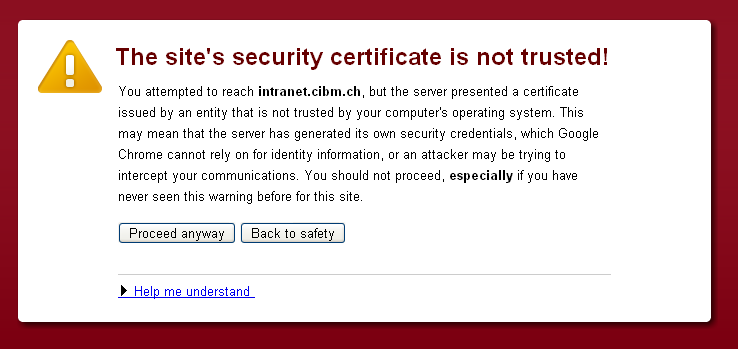


Fix : Problem with CMOS battery I guess. Check if your system clock has turned to 2002 or 2006 or some date back to 4 years. Fix that restart the system and you are done

How do I search for files with word/text in the file on Windows 7


In windows 7 - I want to search for all files containing "A word or phrase in the file". XP search box style


Open My Computer -- Organize --> Folder and Search Options

There is an Option that says "Always Search file names and contents (this might take several minutes)

Select this option and click Ok. Now try to search your files. Once You are done with this search revert the setting to old one. This may save your time for future searches.


One more way is..

In Windows Explorer, click the search box, and start typing (or you can press the Windows logo key +F to bring up search). The search box filters the current view based on the text that you type. Files are displayed as search results if your search term matches the file's name, tags or other properties, or even the text inside a text document.
If you're searching for a file based on a property (such as the file's type), you can narrow the search before you start typing by clicking the search box, and then clicking one of the properties just below the search box. This adds a search filter (such as "type") to your search text, which will give you more accurate results.
If you aren't seeing the file you're looking for, you can change the entire scope of a search by clicking one of the options at the bottom of the search results. For example, if you search for a file in the Documents library but you can't find it, you can click Libraries to expand the search to the rest of your libraries.
Also, you can use the following syntax for searching: “*”.
For example:
i. *234033 -> searches for file which has the content 234033
ii. 234033*. -> searches for files which starts with 234033


Scan Disk / Check Disc runs every time windows starts

Some times we face this peculiar problem, every time you start windows scan disk / check disk utility starts. If you press any key it skips the test and boots. Pressing any key everytime to disable check disk is boring. How can we disable from happening this again. Here are the simple steps that you can do to disable it.


Method : 1
Goto Start --> Run --> Cmd
Suppose your scan disk utility is trying to scan E drive everytime windows starts, use the following command

chkntfs /X E:

If you want to Restore what you have done i.e., enable automatic disk checking, use the following command

chkntfs /D 

Method : 2
If Method-1 fails you can use this method. Goto the following registry key
To Open Registry editor Goto Run --> Regedit

HKEY_LOCAL_MACHINESYSTEMCurrentControlSetControlSession Manager

In the right hand pane, double click BootExecute.

The default value of the key is autocheck autochk *
* means every drive is checked for consistency. Just add /K:C at the end before *. /K switch will disable autocheck on C: drive at Windows startup. So the final value should look like this:
autocheck autochk /k:C *

If you want to add more drives, the key should look like this: (disabling C and D drives)
autocheck autochk /k:C /k:D *

If you want to restore everything to default, just replace the key with the default one i.e.,
autocheck autochk *

How to Press Ctrl+Alt+Del on RDP / TS Session

Solution to this problem is.
Press Ctrl+Alt+End on RDP it works..

Ctrl+Alt+End = Ctrl+Alt+Del on local machine